Short answerForward your Homebase schedule emails to your private ShiftPilot address with a one-time rule in Gmail, Outlook or iCloud Mail. Each shift then gets a reminder on your iPhone the morning of the shift, an hour before, or both, and with calendar sync on the shifts also appear in Apple, Google or Outlook Calendar. Reminders are free; automatic import and calendar sync are Pro features.
A schedule you have to remember to look at
A schedule in an app only helps if you open the app. The shifts people miss are rarely the regular ones. They are the Tuesday that was added on Sunday night, or the open that used to be a close.
What most people want is simple: the phone should tell them before a shift, and the shift should be on the same calendar as the rest of their week. If Homebase emails you your schedule, that email can drive both.
Three ways to get reminded about Homebase shifts
- Check Homebase’s own notification settings first. If the alerts it offers do what you need, use them. We don’t list another company’s settings here because they change.
- Set your own alarms or calendar entries. Works, costs nothing, and has to be redone every week by hand.
- Forward the schedule email. One rule, set once. Every imported shift gets a reminder without you creating anything, plus weekly hours and a pay estimate.
How forwarding works: one rule, set once
ShiftPilot does not connect to your inbox or to your employer’s scheduling system. It gives you a private import address, and you tell your own mail to forward schedule emails there. From then on, a new schedule reaches ShiftPilot when it reaches you.
- Copy your import addressInstall ShiftPilot on your iPhone, sign in with Apple, and open Settings → Import. The address shown there is private to your account. Copy it.
- Find who sends your scheduleOpen a past schedule email from Homebase and copy the address it was sent from. If Homebase is not emailing you your schedule, turn on schedule emails in its notification settings first: ShiftPilot can only read what is emailed to you.
- Create a forwarding rule in your mailIn Gmail, Outlook or iCloud Mail, create a rule that forwards messages from that sender to your import address. The exact steps for each are below. You only do this once.
Gmail
- On a computer, open Gmail, click the gear, then See all settings → Forwarding and POP/IMAP.
- Click “Add a forwarding address”, paste your import address, then Next → Proceed.
- Gmail sends a confirmation code to that address to prove you own it. ShiftPilot shows you the code on its import setup screen; enter it in Gmail.
- Open Filters and Blocked Addresses → Create a new filter. Put your schedule’s sender in “From”, click Create filter, tick “Forward it to” and pick your import address, then Create filter.
Gmail only offers forwarding in its desktop site, not in the phone app.
Outlook
- In Outlook on the web, open Settings → Mail → Rules → Add new rule.
- Name the rule, then set the condition “From” to your schedule’s sender.
- Add the action “Forward to”, paste your import address, and Save.
iCloud Mail
- On your iPhone, open Settings, tap your name at the top, then iCloud → iCloud Mail → Mail Rules → Add Rule. On a computer: iCloud.com → Mail → the gear button → Rules → Add a Rule.
- For “If a message is from”, enter the address your schedule comes from.
- For “Then”, choose Forward to, paste your import address, and Save.
- Test it with a schedule you already haveForward your most recent Homebase schedule email to your import address by hand, and compare the shifts that appear with your schedule. Then turn reminders on in ShiftPilot’s Settings.
- Turn on calendar syncOptional. In ShiftPilot open Settings → Calendar sync to get a private, read-only calendar feed, and subscribe to it in Apple, Google or Outlook Calendar.
No rule, if you prefer. In any mail app you can forward each schedule email to your import address by hand. It does the same thing, one email at a time, and ShiftPilot never needs your email password either way.
What ShiftPilot reads from a Homebase email
ShiftPilot recognises email from Homebase by its sender. The shifts are read by ShiftPilot’s AI parser, which pulls each shift’s date, start time and position out of the email. There is not yet a hand-written reader for the Homebase layout, so check the first import against your schedule.
How the reminders work
- Reminders are sent by ShiftPilot as iPhone notifications, for every shift on your calendar: imported, scanned, generated from a rotation or added by hand.
- They can fire the morning of a shift, an hour before, or both. You choose in Settings.
- Notifications must be allowed for ShiftPilot in your iPhone’s Settings → Notifications.
- You are also told when an import changes your schedule, so a shift added late does not go unnoticed.
What you get once your shifts are in
A calendar entry tells you when to turn up. ShiftPilot is built around the rest of what a shift means: how many hours it adds to the week and what it pays.
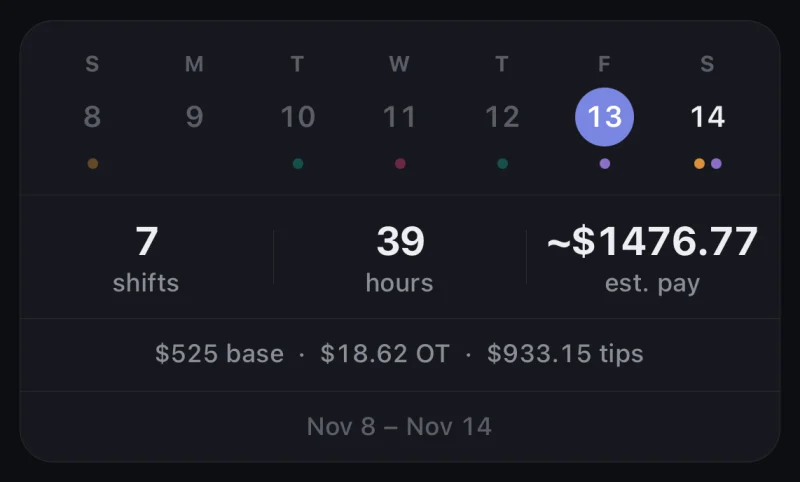
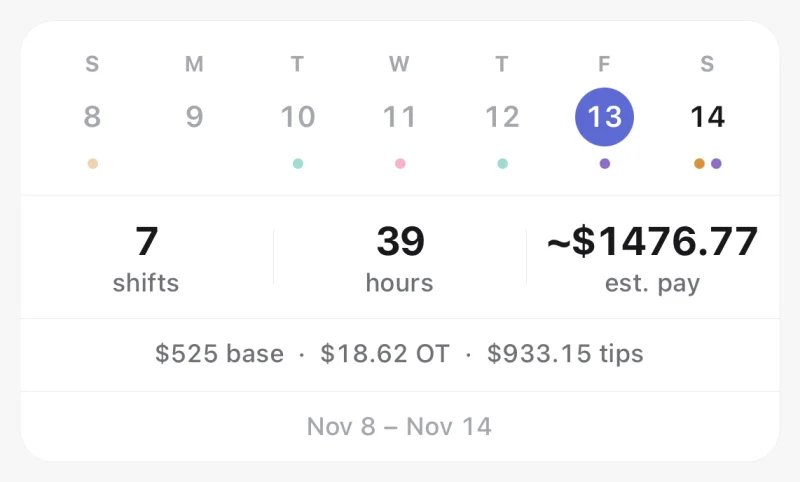
- A calendar built for shift work. Month, week and agenda views, colour-coded per job, on your iPhone.
- A reminder before every shift. The morning of, an hour before, or both.
- Hours and overtime. The week’s hours are totalled, with overtime applied weekly past 40 hours. To check a week by hand, use the overtime pay calculator.
- Estimated pay. Set a rate per job, plus night and weekend premiums and unpaid breaks, and each shift and pay period carries an estimate. The paycheck estimator shows the same sums for a single week.
- Tips and tip-out, if you earn them. Kept separate from base pay. Log a real total from a pay stub and the estimate tunes itself. See the tip-out calculator for the arithmetic.
- Apple, Google or Outlook Calendar. Pro Calendar sync is a private, read-only feed you subscribe to once.
- Apple Watch and widgets. See your next shift and clock in from your wrist; put your next shift, the week’s hours or the month on your Home Screen.
- More than one job. Each keeps its own colour, pay rate and rules, and the totals stay separate.
Honest limits
- Automatic import and calendar sync need Pro. ShiftPilot Pro is $2.99 a month or $19.99 a year in the US, with a 7-day free trial. The free plan covers your shifts and the calendar, shift reminders and pay estimates, with shifts added by hand or generated from a rotation.
- It reads email, not Homebase itself. ShiftPilot never logs in to Homebase. A change that is not emailed to you cannot reach your calendar, so your employer’s system stays the source of truth.
- AI-read, not hand-parsed. Homebase schedules go through the AI parser. When it misreads a time, tap the shift to correct it; sending us the original email lets us improve the reader.
- Reminder timing is fixed to two choices. The morning of the shift, an hour before, or both. If you need a different lead time, add an alert to the synced event in your own calendar app.
- End times. ShiftPilot reads the start of each shift and sets the end from the usual length you give that position.
- Calendar sync is one-way and not instant everywhere. The feed is read-only. Apple Calendar updates fastest; Google and Outlook refresh subscribed feeds every few hours.
- iPhone only. ShiftPilot runs on iPhone and iPad. There is no Android app yet, though the calendar feed can be subscribed to from any device.
- Pay figures are estimates. They are for planning and for noticing a wrong check, not a substitute for your pay stub.
Frequently asked questions
How do I get a reminder before my Homebase shifts?
Forward your Homebase schedule emails to your private ShiftPilot address, then turn reminders on in ShiftPilot’s Settings and allow notifications for the app on your iPhone. Reminders can fire the morning of a shift, an hour before, or both.
Can I put my Homebase schedule on Google Calendar or Apple Calendar?
Yes. Once your Homebase schedule emails are being forwarded, open Settings → Calendar sync in ShiftPilot and subscribe to the private, read-only feed in Apple, Google or Outlook Calendar. Apple updates fastest; Google and Outlook refresh subscribed feeds every few hours.
Are shift reminders free?
Yes. Shift reminders are part of ShiftPilot’s free plan, for any shift on your calendar. What needs Pro is having Homebase schedule emails imported automatically; on the free plan you can add shifts by hand or generate a rotation and still be reminded.
Does ShiftPilot connect to my Homebase account?
No. ShiftPilot never asks for your Homebase login and does not connect to Homebase. It reads the schedule emails your own mail forwards to it.
Why am I not getting reminders?
Check that reminders are turned on in ShiftPilot’s Settings and that notifications are allowed for ShiftPilot in your iPhone’s Settings → Notifications. Also check that the shift is on your ShiftPilot calendar: a reminder can only be sent for a shift the app knows about.
Does ShiftPilot read my email inbox?
No. There is no inbox connection and no mailbox permission to grant. You set up the forwarding rule in your own mail, it sends only the schedule emails you chose, and nothing else in your inbox is ever visible to ShiftPilot.
Is ShiftPilot free?
The free plan covers your shifts, the calendar, shift reminders and pay estimates, and you can add shifts by hand or generate a rotation. Automatic import from schedule emails, schedule scanning from a photo, calendar sync and export are part of ShiftPilot Pro, which is $2.99 a month or $19.99 a year in the US, with a 7-day free trial.